



Additional Information
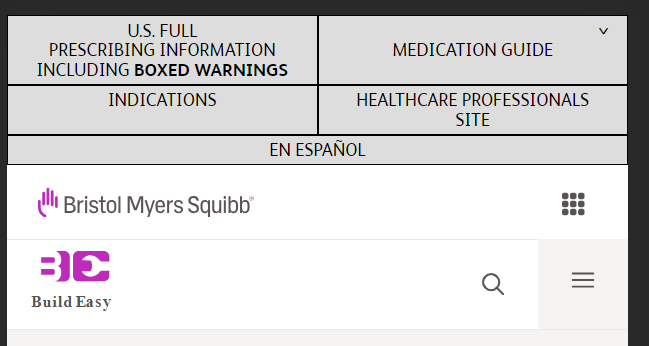
- Global Utility Navigation appears on all branded US commercial websites & this component can be authored by Editors. Editors can author about to the below six links (order could vary):
- Prescribing Information (link on BMS.com server)
- Patient Information or Medication Guide (link on BMS.com server)
- REMS content (if applicable)
- Indication (displays as dropdown link or overlay)
- Link to DTC or HCP site (if applicable)
- Editors can hide & show the links specifically for desktop/mobile. Links would be center-aligned irrespective of the number of links.
- Global Utility Nav can be either configured at global level or at a page specific level. If not configured at a page level, it is inherited from the locale page.
- Editors can hide/configure indication/page specific the global utility navigation via page properties.
- Option to upload images for external link. The image is static and would be the same for all external links. However, the color of the font is inherited to the image
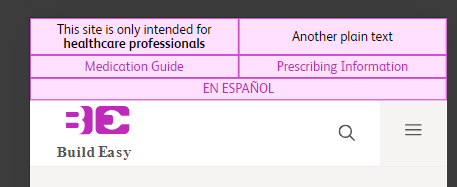
- Option to author the elements as plain text or link (variation 2)
- Background color, Text color, Border color of the links in Mobile view and hover color can be authored in the component.
- The default font size for desktop is 16px & mobile is 12px and this cannot be customized.
- If the number of links for med guide / prescribing info is more than one, the PDF lists appears as a dropdown & the links would open the materials in a new tab. (Click on the med guide link)
- Indication
- Behaves as a dropdown. If the number of indications is more than one, the content appears as a carousel.
- The carousel items do not auto-slide, hence the users have to click on the carousel indicators to proceed to the next slide.
- By default, the indication dropdown is open when the user visits the website for the first time.
- The carousel indicators are at the bottom of the indication drop down. The color of the arrows & the close icon are determined by the primary scope color.
- For mobile view, option to configure static text such as . “This site is intended to US Healthcare”.
- For HCP websites, on clicking BMS resources/BMS connect link, the BMS resources modal would open up. Eg: https://www.sotyktuhcp.com/
For more details on authoring please visit Global Utility authoring guide.
